
The queries that tell you what to publish next are rarely at the top of the default Search Console report. They sit lower down: long, specific, conversational searches that read more like prompts typed into an AI assistant than keywords. Scrolling through thousands of rows to find them is slow and unreliable.
Regular expressions (regex) solve that. One pattern pulls out a whole family of queries, such as every question, every comparison, or every search longer than seven words. This guide explains how regex works in Search Console, when each feature was released, and gives you 10 ready-to-paste filters, a 40+ character filter for prompt-style queries, a method to plan content with query fan-out, and a process to read the results and turn them into content. Everything here is generic, so you can use it on any SaaS site.
Quick answer
To find long-tail and AI-prompt queries in Google Search Console, open Performance, add a Query filter, choose Custom (regex) with Matches regex, and paste ^.{40,}$ for queries of 40 or more characters or ^(?:\S+\s+){7,}\S+$ for queries of eight or more words. Set the date range to 3 to 6 months, export the CSV, and cluster the queries by intent.
What is regex and how does it work in Google Search Console?
A regular expression is a rule that describes a text pattern. When you apply it as a query filter, Search Console checks every search query against the pattern and shows only the matches. Instead of filtering for one exact word, you filter for a pattern.
Search Console uses the RE2 regex engine. It supports the building blocks below, but not lookaheads or lookbehinds, so patterns such as (?!…) will not work.
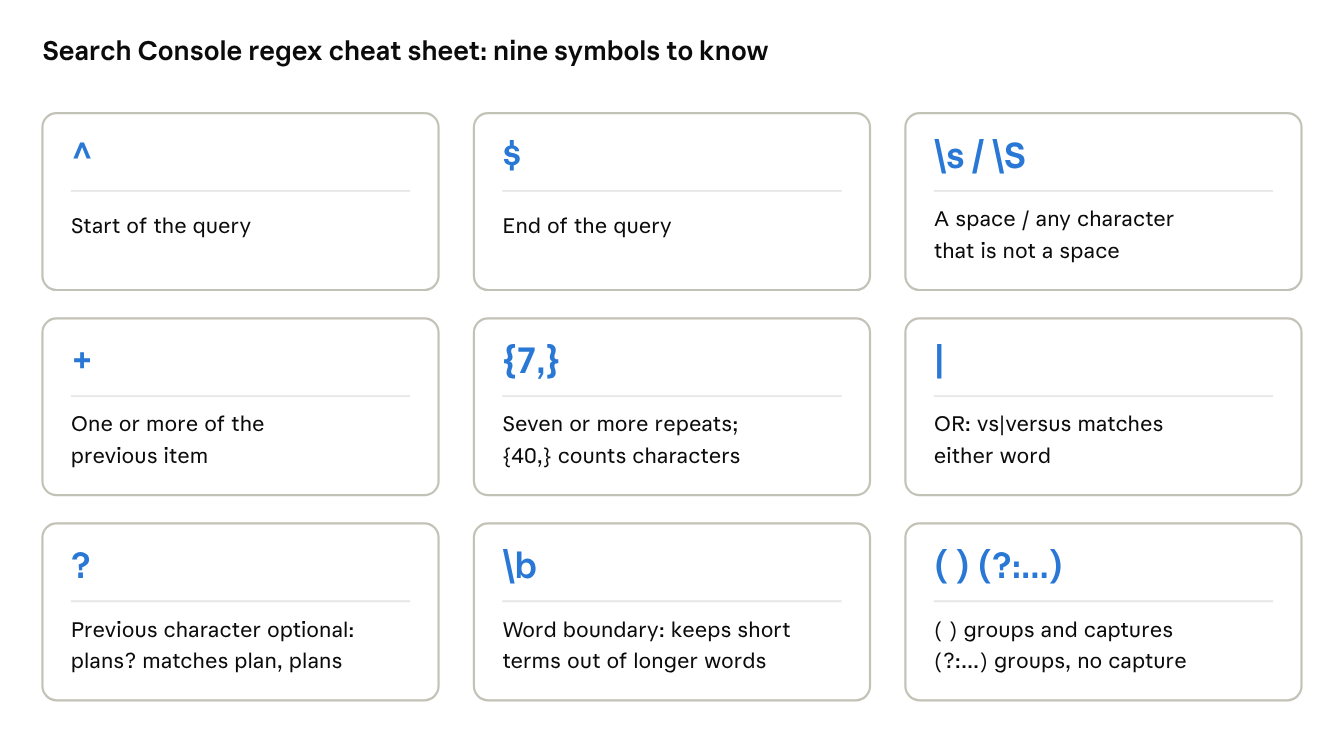
regex symbols · 9 cards
Two behaviours are worth knowing. First, Matches regex performs a partial match, so you do not need to wrap a pattern in .*. Second, search queries in Search Console are lowercase, so case rarely matters. If you need to ignore case, start the pattern with (?i).
Reading a real example
^(?:\S+\s+){7,}\S+$
- ^ starts at the beginning of the query.
- (?:\S+\s+){7,} means one word followed by a space, repeated seven or more times.
- \S+$ is the final word, ending the query.
Together they match any query of eight or more words, for example “how do i automate invoice approvals for a small team”. These read like prompts typed into an AI assistant, which makes them valuable for answer engine optimization (AEO) and generative engine optimization (GEO).
When were these features released?
Knowing the timeline helps you judge what your data can and cannot show.
- April 2021: regex filters. Before this, Performance report filters only supported containing a string, not containing a string, and exactly matching a string. Google introduced regex filters for queries and pages, plus a revamped comparison mode that supports them (Google Search Central blog, April 2021).
- June 2021: Doesn’t match regex. About two months later, Google added the negative option, so the filter supports both matching and not-matching regex. This is what makes non-brand filtering possible.
- 17 June 2025: AI Mode data. Google confirmed that AI Mode clicks, impressions, and position data count toward Search Console totals. They are aggregated under the existing Web search type, with no separate segment.
- 11 March 2026: branded queries filter. Search Engine Land reported that Google expanded the branded queries filter to all eligible sites, covering web, image, video, and news. If you have it, it is a faster alternative to a manual brand-exclusion regex.
- 2026: Generative AI performance report. Google announced the report on 3 June as a separate view of visibility inside AI-generated search features, and Search Engine Journal reported it live for everyone as of 11 August. The same data also stays in the overall Performance report. Check your own account for availability and confirm details on Google’s Search Central site before you rely on them.
How to apply a regex filter in Search Console
- Open Search Console and go to Performance, then Search results.
- Click + New, then choose Query.
- In the dropdown, select Custom (regex), then Matches regex.
- Paste the pattern and click Apply.
- Set the date range to the last 3 to 6 months so low-volume queries have time to appear.
- Turn on all four metrics: Clicks, Impressions, CTR, and Position.
- Click Export to download the data as a CSV.
When you copy patterns from a document or chat, use a plain pipe for OR. Some formats add a backslash before it, which changes the meaning and breaks the filter.
Remove branded searches
Add a second query filter, choose Doesn’t match regex, and enter your brand terms, for example yourbrand|your brand. Stack it with any filter below to see non-brand demand only. If the branded queries filter is available on your property, you can use that instead.
The 40+ character filter for prompt-style queries
Counting words is not always the best test. A query with a few very long words can still read like a prompt, and word counts behave differently across languages. A character count treats every query the same way:
^.{40,}$
- . matches any character, including spaces.
- {40,} means 40 or more of them.
- ^ and $ make the rule apply to the whole query.
A query of 40 or more characters is usually a full sentence of roughly six to eight words, which is the phrasing people tend to use with AI assistants. Treat 40 as a starting point:
- ^.{40,}$ finds long-tail and prompt-style searches.
- ^.{60,}$ finds detailed, multi-part prompts. There are fewer, but the intent is clear.
- ^.{40,80}$ finds sentence-length searches without the very long outliers.
Run the word-count filter and the character filter separately, export both, and compare. The overlap is your strongest prompt-style set, and the queries that appear in only one tell you what each method misses.
The 10 regex filters
Filter 1: Long conversational queries (the AI-prompt finder)
^(?:\S+\s+){7,}\S+$
What it matches: queries of eight or more words, such as “how do i automate invoice approvals for a small team”.
How it works: it counts words by repeating a word-plus-space unit seven times, then requires one final word.
What to build: long-form answer blogs. Use a clear question as the heading and a direct, quotable answer in the first two sentences. This is the closest view you have of how people talk to AI search.
Filter 2: Question queries (the FAQ and AEO source)
^(who|what|why|how|when|which|can|does|is|are|should)\b
What it matches: any query that starts with a question word.
How it works: ^ anchors the match to the start, so “what is workflow automation” matches but “workflow automation what is” does not.
What to build: “What is X” explainers, FAQ blocks, and answer-first sections. Group questions by topic and turn each group into one page with a question-led H2 for every variation.
Filter 3: Comparison queries (the high-intent finder)
\b(vs|versus|compare|comparison|difference between)\b
What it matches: queries where the searcher is weighing two options.
How it works: the word boundaries make “vs” match as a word and not inside other terms.
What to build: “X vs Y” pages, category explainers, and decision tables. Comparison searchers are close to a decision, so these pages tend to convert better than top-of-funnel blogs.
Filter 4: Alternatives and competitor queries
alternatives?|competitors?|instead of|replacement
What it matches: people looking to switch from, or shortlist against, a named product.
How it works: the ? makes the trailing “s” optional, so singular and plural forms are both caught.
What to build: “top alternatives to X” pages and competitor profiles. The competitor names that appear most often show who buyers associate with your category.
Filter 5: Best-of and review queries
^(best|top)\b|reviews?|ratings?
What it matches: listicle-style searches and review-seeking searches.
How it works: two branches joined by a pipe. The first anchors “best” or “top” to the start, and the second catches review and rating terms anywhere.
What to build: ranked roundups, review-style comparison pages, and G2-style content. Also use this data to decide which review sites and directories deserve attention, since AI search often cites them.
Filter 6: Pricing and commercial-intent queries
pric(e|ing)|cost|free|plans?|demo|trial|quote
What it matches: bottom-of-funnel searches from people ready to evaluate or buy.
How it works: pric(e|ing) covers both “price” and “pricing” in one expression.
What to build: pricing page improvements, demo landing page copy, and free-trial messaging. If these queries earn impressions but few clicks, rework titles and meta descriptions to state pricing clarity, such as plans, free tier, or demo availability.
Filter 7: Audience and use-case queries (the segment finder)
\bfor (startups?|enterprise|agencies|ecommerce|developers|teams|finance|hr)\b
What it matches: queries that attach your product category to a specific audience or workflow.
How it works: the pattern looks for the word “for” followed by one of your target segments, so it surfaces phrases like “project management for agencies”. Swap the list for your own markets.
What to build: one use-case page or blog per segment. These pages build trust because they speak the buyer’s language.
Filter 8: How-to and implementation queries
how to|set ?up|integrat(e|ion)|implement|tutorial|guide|template|example
What it matches: searchers who want to do something, not just learn about it.
How it works: set ?up allows both “setup” and “set up”, and integrat(e|ion) covers integrate and integration.
What to build: step-by-step tutorials, integration guides, templates, and worked examples. These attract practitioners and are strong candidates for featured snippets and AI citations.
Filter 9: Pain-point and automation queries
automat(e|ion)|manual|reduce|streamline|not working|\berror\b|\bfix\b
What it matches: problem-focused searches that describe friction, such as manual processes or broken workflows.
How it works: the \b markers on “error” and “fix” prevent accidental matches such as “prefix”.
What to build: problem-solution blogs that open with the pain point, quantify the cost, then show the fix. The wording people use here is also good source material for ad copy and landing page headlines.
Filter 10: Category-term queries (the topical authority map)
Build this from your own category vocabulary:
\b(term one|term two|term three)\b
For example, a CRM tool might use \b(crm|pipeline|forecasting|lead scoring)\b.
What it matches: searches that use your category’s core vocabulary.
How it works: short terms need word boundaries. Without them, a short term like “rag” would match unrelated words such as “storage”.
What to build: glossary entries, pillar pages, and definition content. Impressions here show how well Google associates your site with the category, so use them to decide which concepts need deeper coverage.
Bonus filters
Prompt-style phrasing:
(recommend|suggest|looking for|help me|i need|i want)
This finds queries written the way people talk to an assistant. Pair it with Filter 1 to isolate the most AI-like searches in your data.
Non-brand only: use Doesn’t match regex with your brand terms to remove navigational searches and see pure discovery demand.
How to plan content with query fan-out
When someone asks an AI assistant a broad question, the system often breaks it into several narrower sub-queries before it writes an answer. That is query fan-out. A page that answers only the head question can lose out to a page that also covers the sub-questions.
You can plan for this with your own Search Console data:
- Pick one topic and the filter that fits it best, for example Filter 8 for an implementation topic.
- Export the matching queries and sort by impressions.
- Group them into sub-questions: definition, steps, tools, cost, mistakes, comparison.
- Give each sub-question its own question-led H2, with a direct answer in the first two sentences.
- Add the remaining long-tail variants as FAQ entries.
- Run Filters 1 and 2 again after publishing to see whether new long-tail queries start appearing.
This turns a flat list of queries into a page outline that covers the whole cluster.
How to read the results
After each filter, export the CSV and look at four signals.
- High impressions with position 8 to 30. These are quick wins. The page is close to page one, so a dedicated blog or an update to the existing page can move it up.
- Impressions with zero or very low clicks. This often points to a zero-click result such as an AI Overview or a featured snippet. Add a short, direct answer near the top of the page and use a question-style heading.
- Repeated words and modifiers. Words that appear again and again, such as “for agencies”, “vs”, or “template”, are natural H2 headings.
- Which filter holds the most impressions. The pattern that carries the most demand tells you whether your audience wants answers, comparisons, pricing, or tutorials.
Turning filter data into blogs
- For each filter, export the top 10 to 20 queries by impressions.
- Note the page that currently ranks and its average position.
- Cluster queries that share the same intent. One cluster should become one blog, not several thin posts.
- Use the repeated modifiers as H2s, and the question-style queries as FAQ entries.
- Write a direct answer first, then supporting detail, examples, and a comparison table where relevant.
- Re-run the same filters after 4 to 6 weeks to measure movement in impressions, position, and clicks.
Troubleshooting: when a regex returns nothing
- A stray backslash before the pipe. Retype the pipe as a plain character.
- Lookahead or lookbehind syntax. RE2 does not support it. Rewrite the pattern with simpler groups.
- Date range too short. Long-tail queries need 3 to 6 months to show up.
- Anchors too strict. ^ and $ force a full-query match. Remove them if you want a partial match.
- Short terms matching junk. Add \b word boundaries.
Limitations to keep in mind
- Search Console hides anonymized queries, so long-tail data is always incomplete.
- AI Mode and AI Overview activity is counted inside Web totals, so you cannot isolate it with a regex filter. The Generative AI performance report, where available, is the better place to look at that slice.
- Short patterns can match inside unrelated words. Add \b whenever a term is short.
- Regex filters show demand you already earn impressions for. They will not reveal topics where your site has no visibility yet, so pair them with keyword research.
Frequently asked questions
Does Google Search Console support regex? Yes. The Performance report accepts regex in Query and Page filters through the Custom (regex) option, using the RE2 syntax. Regex filters launched in April 2021.
How do I find long-tail queries in Search Console? Use a regex such as ^.{40,}$ for queries of 40 or more characters, or ^(?:\S+\s+){7,}\S+$ for queries of eight or more words.
How do I exclude branded queries? Add a second query filter, choose Doesn’t match regex, and enter your brand terms. Doesn’t match regex has been available since June 2021.
Can I filter AI Mode or AI Overview queries? Not with regex. That data is counted inside Web totals. Use the Generative AI performance report where it is available.
How often should I re-run the filters? Every 4 to 6 weeks, using the same date range length, so you can compare impressions, position, and clicks.
Final thoughts
Regex turns Search Console from a reporting screen into a content research tool. Ten filters give you ten lenses on the same data: how people ask, compare, price, implement, and complain. Start with the long conversational filter, export the results, cluster by intent, and write the first blog from the biggest cluster.